Simple Cybersecurity Steps
Simple Bite Sized Solutions to increase your privacy and safety online
2026-09-21 by Steve Forkin
For most doing anything about Cybersecurity is a daunting task that is easily put into the too hard basket..

Notes to be presented to Tafe
-
My name is Steve Forkin, I studied Software Engineering at Edinburgh Uni in the early 90’s at a time when students still learned all the design & code that actually runs the internet. I started my career on IBM Mainframes, and have since worked on all major operating systems. Today I am Linux and OpenBSD guy, programming backend services on the internet
-
In this short presentation I want to show some simple steps that you can take to protect yourself from having your devices hacked, your identity stolen or your online banking details stolen. Considering the global rollout & use of AI tools to automate technology, it would be naive to think these tools are not being used by the bad guys.
-
You don’t need to take notes - The team can send an email with a link to the resources on my website.
(1) EMAIL: Do not allow remote content in email messages
Most people are blissfully unaware of the dangers of allowing your email program to present you with images ready for you to click on.
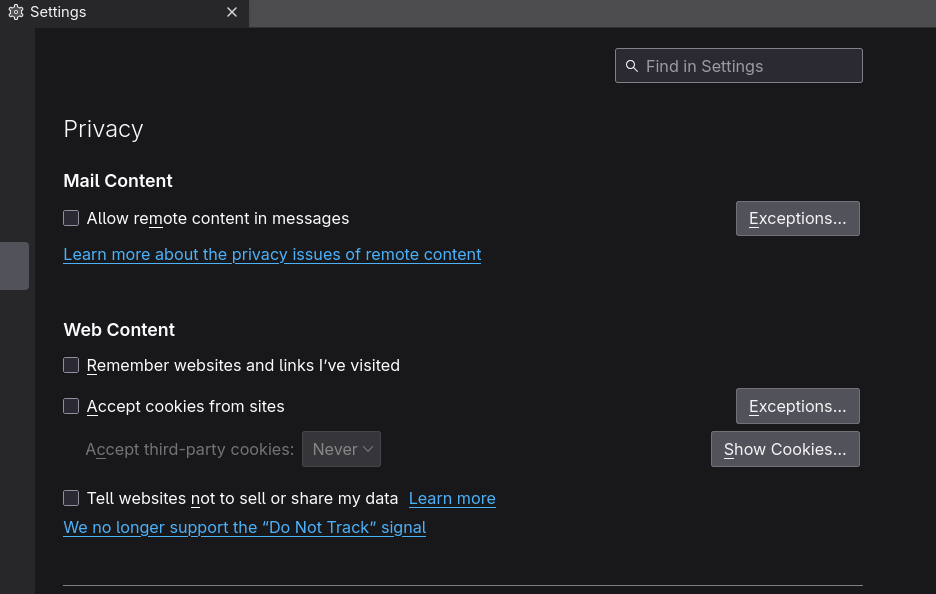
- This here is Thunderbird, similar settings exist for all major email programs, like Outlook, Apple Mail etc
- Basically unticking this option will result in you being asked each time you receive an email, whether you trust the sender or not.
- Here is where this is important. Let’s say you trust your bank, and you normally click on buttons with links within your banks emails.
- Lets say you receive a malicious email from someone pretending to be your bank, and you didn’t notice the slightly different spelling in the sender’s email address.
- Clicking a bad image could take you to a spoofed site that harvests your credentials.
- A bad image could also take you to the legitimate site – leading you to trust the sender.
- However that bad image actually could ALSO contain something more sinister. Hackers have learned to embed code in PNG files that still look like an image, but actually contain code as well as the image. By clicking on the image you have executed the payload on your device. That could for argument sakes have installed a keylogger, not in your main protected systems area, but in a place that the browsers safely execute code. That keylogger could then be harvesting your credentials.
REMEDY: Never click on buttons in emails. If you need to go to a url, let’s say you needed to reset your password and the site sent you an email with a onetime link. Having this option disabled will mean the email will show you the raw link rather than the button and you can read the domain name in the link yourself to verify it.
(2) PASSWORDS: Use a Password Safe
There are many online services, most of which are closed source and therefore receive no scrutiny. The safest place to store your passwords is on your own device!
- I recommend KEYPASS - basically though, any password safe is better than your own weak passwords.
- The password safe is used to randomly generate long & secure passwords.
- You only need to remember the one long passphrase you use to enter or open the safe.
- When you go to log in to a site - you simply copy and paste the credentials from the safe
- NEVER reuse a password
- (Sites/Apps don’t store your plain text password - they store what is called a “HASH” - which is the result of running a one way/repeatable algorithm over your password - on login the hashes are compared)
- When sites are hacked - the hashes can be compared with previous hacks - if they are the same (that means you have reused the password) –>> If your password was compromised once - all other sites where you shared the same password are compromised too!
- In some cases we need passwords in memory (when we don’t have the laptop/password safe with us) – then use three consecutive words –>> ElephantPumpCheese (the length is what matters + non dictionary)
- DEMO:
- https://www.security.org/how-secure-is-my-password/
- elephant -> elephantpump -> elephantpumpcheese
- CHECK if your personal information has been subject to a data breach:
- https://haveibeenpwned.com/
- DEMO: enter one of my email addresses to show what happens!
(3) Don’t give any website your implicit trust
This is more of a caution than an action point, although some of the actions on later points will refer back to this one.
-
Let’s open a browser and go to: https://themarkup.org/blacklight
-
Let’s review a few well known sites that most would think they can trust:
-
Enter these urls into the form & watch the site analyse the kinds of sinnister technology used..
-
DEMO - only www.finder.com.au
–>> If the DEMO fails - the image = the result of a previous review of the NAB
- Some sites literally run javascript that log all the keystrokes from your keyboard while you are that site!
- What the “bad” javascript that captures keystrokes is doing - is checking what links are most clicked on and what searches are most done for advertising purposes
- BUT - IF you implicitly trust the good+guy – you are also implicitly trusting the bad+guy – who can run a keylogging js on your machine to gather credentials
- The question really is - Should sites be able to do this? What can we do to prevent it? - We will get to that next
(4) BROWSERS: Don’t trust any browser extension unless the source code has been vetted
We will get to what you can do about browser extensions next - here I am alerting you to the risks
-
Several large scale studies have demonstrated the persistence of malicious actors that get passed all the security vetting at companies like Google
-
HOW so - I hear you ask?
-
Basically a bad actor starts by posting a simple theme to the google extension store - followed by aggressively marketing the theme on social media
-
12 months go by and they might add more themes followed by ensuring a steady growth in popularity and consistent secure practices to get a good reputation at google
-
Another 12 months goes by and this actor now uploads an extension - might start with one that simply prints a page as a pdf or the like
-
This extension requires permissions to “do stuff” and here the creator ensures he plays by the rules strictly - this is all to build reputation
-
Another 12 months goes by and now the creator puts out an extension that does a whole lot more - but still playing by the rules
-
By now he has a good reputation at Google and the engineers have relaxed their attitude towards checking the creators code
-
Another 12 months goes by and now the creator is ready to deploy the real payload - it doesn’t come by the way of a new extension, it just comes by the way of an update
-
The update doesn’t yet do anything, it just lies dormant in the by now millions of computers that have downloaded the popular extension
-
Finally D-DAY arrives and a tiny update that looks like a small change to an existing function - but this one has the all important go-live switch
-
Now all the users/pcs silently have become part of a huge botnet - sending data home to China, sometimes doing malicious stuff on the actual pc, but often its just data harvesting
-
One of the largest such botnets was over 2 million PC’s. Security researchers checking browser extensions only learned of this by crawling through unusual network traffic
(5) WHICH BROWSER: Your mileage may vary but I am going to suggest a simple open source solution
Rather than using one of the Chrome based browsers such as Chrome, Edge or Brave
- Firefox is the only real “open source”
- But it has literally 100’s of settings that require expertise to understand – yes I do feel for non technical users!
- My recommendation is to harden Firefox using arkenfox.js - all the details are in the resources.
- The best way to do this is to first uninstall firefox - if you are not starting from a clean slate
- Do a clean install of firefox + install arkenfox ==> follow the links on my page
(6) WHICH BROWSER EXTENSION:
If you read Arkenfox carefully - his advice re “extensions” is much like mine!
-
The only three extensions I would recommend are: (they are open source and carefully vetted by security researchers)
-
(1) U-block origin
-
(2) Privacy badger (Electronic Frontier Foundation)
-
(3) no-script - DEMO time.
(7) VPN - To use or not to use?
99% of VPNS are bad - if you are not sure what to use - it might be better to stay away from them
- When you absolutely should use a VPN
- Any public WIFI - and especially WIFI networks that show up a captive portal
- There is a simple wifi hijacking device sold on the internet call “pineapple/wifi” - it pretends to be a public wifi & has special tools in it to spoof “captive portals”
- Then it will sit inbetween you and the website/internet you access. Let’s say you sign into a public site
- I can easily spoof real sites like facebook and redirect you to the spoofed login page capturing your login details
- The ONLY Way to protect yourself against such an attack is to use a VPN
- Please see the notes for a detailed review of 50 VPN’s and which ones are recommended by top security researchers
- As a rule though, I would strongly recommend never to access your bank or payment provider on a public insecure wifi
(8) BACKUP: You might think, why is this part of Cyber Security?
No one is 100% safe from being attacked. When you are subject to an attack, the best protection/recovery is the last safe backup that is not compromised
- Backup at least weekly – best is daily - depends on the level of change in your important data
- Encrypt the backups - and do not store the secret anywhere on your network - so that an attacker cannot get access to the backups - ever!
- Store the backup(s) on drives that are not connected to your network (apart from when you backup)
- Worst case scenario - reinstall your devices and restore data from the backup
(9) NEVER trust a USB cable with your phone
-
USB-A (4 wires) - 2 for power and 2 for data
-
Let’s say you are in an airport and you phone runs out of battery
-
A super friendly guy next to you hands you a cable which you can borrow to charge your phone
-
Unbeknownst to you, that cable has a tiny transmitter that enables him or her to get access to your phone data or worse install a malicious payload on your phone
-
The best cable you can trust is the one you bought from a reputable site & for a power only cable / the one you fixed yourself
(10) IOT devices are notorioulsy insecure & anti/privacy
This one is a hard sell - hence I won’t dwell on it, even though I should
- Every smart device on the market – from China – has backdoors, harvests tons of data & sends this data home (home being China)
- My recommendation: Get rid of them all
- One device that does not “harvest” as badly as most is an Apple TV - this is the only apple device I have.
- IF you own a smart tv - at least be aware of what you own: https://www.youtube.com/watch?v=6IFVTcM28KA
(Finally) - NEVER trust your IT guy, unless you really do trust him/her
The first rule here is: “Know every single device & cable in your network” - that way you will immediately know if something has changed!
-
Should you buy Routers from Amazon or dare I say trust the router from your ISP - watch this if you think you should!
———- References ———-
-
How a malicious attacker can embedded code in a PNG file
-
https://isc.sans.edu/diary/TerminalFix%3A%20PNG%20Steganography/33318
-
Browser extensions
-
bot net of millions of users & steal credentials through a malicious extension
-
https://www.obsidiansecurity.com/resource/malicious-browser-extensions-infect-2-3-million-users
-
usb cable that can capture keystrokes
-
https://www.techspot.com/news/112512-82-usb-cable-hides-wi-fi-microcontroller-inside.html
-
USB condom
-
ARKENFOX - Firefox hardening
-
PUNYCODE - homograph attack
= xn–80ak6aa92e.com –>> apple.com
-
https://github.com/arkenfox/user.js/
- The best way to do this is to first uninstall firefox - if you are not starting from a clean slate
- Do a clean install of firefox + install arkenfox ==> follow the links on my page
- Download the user.js file from github.com/arkenfox
- open a new browser tab & type “about:support”
- Click on “open profile” directory & copy/paste the “user.js” file in there
- Restart firefox and you will notice a much cleaner/cutdown interface - basically a hardened version
- Read the documentation/wiki on github to learn how to customise and do periodic updates
-
VPN stuff
- Techlore has a page where they sift through 50 odd major VPN providers telling you which ones are safe
- https://techlore.tech/
- My Recommendation - only two pass the test
- ProtonVPN
- Mullvad (developed by serious privacy advocates) in Sweden
- https://www.youtube.com/watch?v=W4-D49TgHK4
-
BACKUP:
-
My recommendation: https://restic.net/
-
USB stuff:
-
https://www.techspot.com/news/112512-82-usb-cable-hides-wi-fi-microcontroller-inside.html